 Allô Lou
Family link: more devices
What it does
Family link keeps every tablet and phone in your family up to date: the same children, progress, points and settings. There is no account: a family code links your devices. What travels between them is locked on your device first, so our server cannot read it.
Link a second device
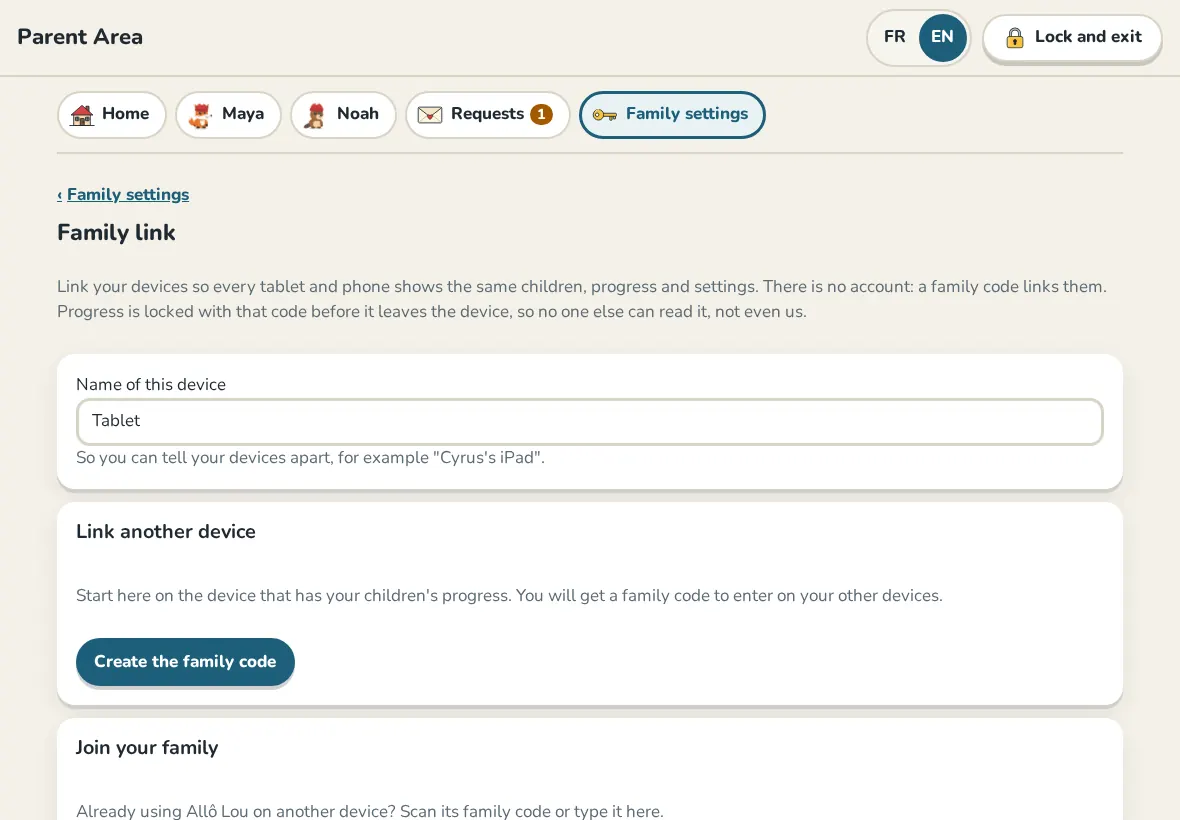
- On the device that has your children's progress, open the Parent Area, Family settings, Family link, then Create the family code.
- On the new device, choose Join my family on the welcome screen. (If the app is already set up there, open Family link and use Join your family.)
- Tap Scan the code and point the camera at the code on the first device, or type the code.
- If the new device already has children, choose Keep this device's progress too or Use the family's progress here.
Give each device a name, like "Maya's iPad", so you can tell them apart in Linked devices.
Keep the family code safe
Write the family code down. It links new devices, and it is the only way to get your progress back if every device is lost. Anyone with the code can join your family.
A lost or given away device
In Linked devices, tap Remove next to it, then Make a new family code. The old code stops working everywhere; enter the new one on your other devices. Nothing on them is lost.
Stop syncing
- Unlink this device stops this device only. Its children and progress stay on it.
- Delete the family link deletes your family's copy from our server for every device. Each device keeps what it has and stops syncing.
Still need help?
Write to us at hello@allolou.com and tell us what you tried. A screenshot helps.